Smart Meter Display Not Working? How to Fix Geo Trio & Chameleon Errors
There is nothing more frustrating than trying to check your energy usage only to see a blank screen, a spinning “connecting” wheel, or a cryptic error code. With energy prices in the UK constantly fluctuating, your In-Home Display (IHD) is a vital tool for budgeting. When it disconnects, you are flying blind.
If your smart meter display is not working, don’t panic. The good news is that most connection drops, whether on a Geo Trio or a Chameleon IHD6—are caused by simple wireless interference or synchronization delays, not broken hardware.
This guide will walk you through the exact troubleshooting steps to reconnect your device to the Home Area Network (HAN) without spending hours on hold with British Gas, Octopus, or OVO.
Understanding Your Connection: The “HAN” Explained
To fix your display, you first need to understand how it talks to your meters.
Your In-Home Display does not connect to the internet directly. Instead, it connects to a mini wireless network inside your house called the Home Area Network (HAN). This network is created by the Communications Hub (Comms Hub), which is the plastic box attached to the top of your electricity meter.
Why the Electricity Meter is the “Boss”
Think of your electricity meter as the Wi-Fi router. Your gas meter and your IHD are just “satellites” that need to talk to the electricity meter.
-
The Electricity Meter: Creates the signal.
-
The Gas Meter: Sends data to the electric meter.
-
The Display (IHD): Receives data from the electric meter.
If your display is too far from the electricity meter, or if thick walls block the signal, the connection drops. This is the root cause of 90% of issues.
Fixing the Geo Trio: “Status 23-1” Meaning & Solutions
The Geo Trio is one of the most common displays distributed by UK suppliers. It is prone to a specific error code that confuses many users.
What Does “Status 23-1” Mean?
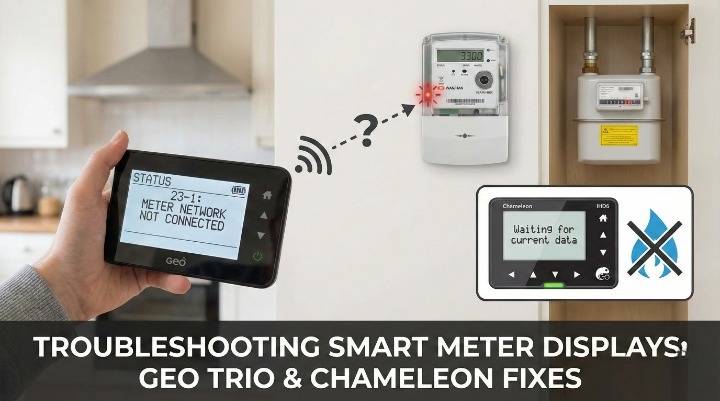
According to the official Geo Trio User Manual, Status 23-1 specifically indicates a “Lost Connection to Meter Network.”
This means the display cannot find the signal from your electricity meter. It is not broken; it just can’t “hear” the Hub.
Step-by-Step Fix for Geo Trio Monitors
-
The Proximity Check: Unplug the monitor and move it within 2 meters of your electricity meter. Even if you don’t want to keep it there permanently, you must move it close to re-establish the “handshake.”
-
The Power Cycle: Unplug the power cable from the back of the device. Remove the batteries if you have inserted any. Wait for 60 seconds.
-
Reconnection: Plug the power back in. The screen will light up and attempt to rejoin the HAN.
-
Check System Status: Press the middle button to enter the menu. Navigate to “System Status.” If the connection is successful, the signal bars in the top left corner should turn solid within 5 minutes.
Once the Status 23-1 error clears, you can move the display back to its original location. If the error returns immediately, that location is a “dead spot” in your home where the Zigbee signal cannot reach.
Chameleon IHD6: Lost Connection to Gas Meter Only
A very common issue with the Chameleon IHD6 (and the newer IHD7) is that it shows electricity usage perfectly, but the gas data disappears. You might see a cloud icon with a line through it next to the gas flame symbol.
The “Sleep Cycle” Problem
Why does the gas drop out while electric stays connected?
The electricity meter is mains-powered, so it is always “awake.” The gas meter runs on a battery. To make that battery last 10-15 years, the gas meter spends most of its life “asleep.”
According to technical specifications from Smart Energy GB, gas meters only wake up once every 30 minutes to send a reading. If your IHD attempts to connect while the gas meter is sleeping, the handshake fails.
How to Re-sync Gas Data
Most people fail to fix this because they don’t wait long enough. Follow this strict process:
-
Move the IHD: Place the Chameleon IHD6 in the same room as your Electricity Meter (remember, the electric meter is the Hub).
-
Force a Reboot: Unplug the IHD and restart it.
-
The Crucial Step: Leave it alone for at least 60 minutes.
You must wait for the gas meter to wake up naturally and send its “heartbeat” signal. If the IHD is close by when that happens, the gas flame icon will turn solid, and usage data will reappear.
“Waiting for Current Data”: Why It Happens
You may see a message saying “Waiting for current data” while the rest of the screen looks normal. This is distinct from a total connection loss.
New Installs vs. Sudden Errors
If your meter was installed less than 48 hours ago: This is normal. The Data Communications Company (DCC) network takes time to commission new devices. Your supplier needs to receive the initial register reads before the display will populate with live costs.
If this happens suddenly after months of working: The Communications Hub on your wall may have frozen or received a firmware update that caused a glitch.
The Signal Strength Test
Check the signal bars in the top left corner.
-
0-1 Bars: The signal is too weak. Move the display closer to the electric meter.
-
4-5 Bars but “Waiting for Data”: The connection is strong, but the data stream is blocked. This usually requires a Hard Reboot (see below).
The “Technician’s Secret”: How to Reset Chameleon IHD Without Supplier
If standard restarting doesn’t work, you can perform a system reset. You do not need to call your supplier for this.
Method 1: The Hard Reboot (Power Button)
-
Unplug the USB power cable from the IHD.
-
Hold down the round On/Off button on the back (or side) of the unit.
-
Keep holding it for 10-15 seconds until the screen goes completely black.
-
Wait a minute, then plug it back in.
Method 2: The “Battery Drain” Fix (When Buttons Fail)
In my experience dealing with “zombie screens” (where the display is frozen and buttons won’t respond), the power button method often fails. The internal battery keeps the glitch in memory.
Here is the technician’s trick:
-
Unplug the IHD from the mains.
-
Leave the device turned ON.
-
Let it sit on the counter until the internal battery dies completely and the screen turns off. This might take 2-4 hours.
-
Once the screen is dead, leave it for another 15 minutes to ensure all residual power drains from the capacitors.
-
Plug it back in.
This forces a “cold boot,” which is far more effective at clearing software glitches than a simple restart.
When to Call Your Supplier (Your Consumer Rights)
If you have tried the 2-meter rule, the waiting period, and the battery drain fix, and the display is still blank or showing errors, the hardware may be at fault.
The 12-Month Rule
According to Citizens Advice UK, your energy supplier is responsible for ensuring your IHD works correctly. If your smart meter was installed within the last 12 months, the supplier must repair or replace the display free of charge if it is faulty.
Identifying a “Dumb” Meter
Check your actual physical meters in the cupboard.
-
Electricity: Look for a flashing red light labeled “WAN” or “HAN.” If these lights are off or solid red (depending on the model), the Hub on the wall has failed.
-
Gas: Press a button on the gas meter to wake up the digital screen. If the screen on the meter itself is blank, the meter battery has died.
In these cases, a new display won’t help. You need an engineer visit to replace the meter hardware.
Summary
Smart meter displays are simple radio devices. Like a car radio going through a tunnel, they can lose signal due to interference, distance, or synchronization timing.
Before you spend your lunch break on hold to customer service, try the Battery Drain method tonight. Drain the power, recharge it next to the electric meter, and give the gas meter an hour to wake up. This simple routine fixes the vast majority of “broken” displays.
FAQs
Why is my smart meter display only showing electricity usage?
This usually happens because the gas meter has lost connection with the electricity meter (the Hub). Gas meters run on batteries and have a shorter wireless range. Move your display closer to the electric meter and wait 60 minutes for the gas meter to send a new signal.
How do I reconnect my IHD6 to the smart meter?
Move the IHD6 within 2 meters of your electricity meter. Unplug it, let the battery run flat (drain completely), and then recharge it. This forces a full system reboot and helps it find the network again.
What do the lights on my Chameleon IHD mean?
The colored LEDs usually represent your current energy usage. Green means low usage, Amber means medium, and Red means high usage. If the display has specific small icons (like a triangle with an exclamation mark), check the “System Status” menu for error codes.
Why does my smart meter say “Waiting for current data”?
This means the display is connected to the network but isn’t receiving the numbers. This often happens after a firmware update or if the Hub is temporarily frozen. Perform a reboot and wait 24 hours.
Can I buy a replacement in-home display myself?
Generally, no. The display must be securely paired to your specific smart meter network by the supplier using its MAC address and a specific install code. You cannot buy a generic one off eBay and expect it to work.
Does resetting the display delete my usage history?
No. Your historical usage data is stored on the meter itself and your supplier’s servers, not on the plastic display unit. Resetting the display only clears temporary settings; the data will reload once it reconnects.
Why is my Geo Trio beeping red?
A red LED or beeping on a Geo Trio usually indicates you have exceeded your set budget. You can adjust this budget in the settings menu. If it is a system error, a code (like 23-1) will usually appear on the screen.
Is the smart meter monitor the same as the smart meter itself?
No. The “smart meter” is the box bolted to your wall that measures energy. The “monitor” (IHD) is just a small screen that shows you what the meter is doing. You can turn off or unplug the monitor without affecting your energy supply or your billing.
About the Author