Virgin Media Hub 3 Red Light Fix: 3 Ways to Restore WiFi
Your internet has cut out and your Virgin Media Hub 3 is glowing with a solid red light. It is a frustrating sight. For many UK households, this usually happens right in the middle of a streaming session or a vital work call.
While most routers use red lights to indicate a simple connection drop, the Hub 3 is different. As these units age, a red light often signals a hardware warning rather than just a lost signal. This guide covers exactly how to diagnose the issue, distinguish between a “false alarm” and a fire risk, and the three specific steps you need to take to get back online.
What Does the Red Light on a Virgin Media Hub 3 Mean?
Before you start unplugging cables, you must identify the specific pattern of the light. Virgin Media designed the Hub 3 with a specific colour-coded system that differs from the newer Hub 4 or Hub 5 models.
| Light State | What it Usually Means | Priority Level |
| Solid Red | The Hub is overheating or has a serious internal fault. | High (Safety Risk) |
| Flashing Red | There is a fault with the cable connection or the area signal. | Medium (Service Issue) |
| Solid Magenta | The Hub is in “Modem Mode” (not a fault). | Low (Settings Issue) |
According to official Virgin Media support documentation, a solid red light is the primary indicator that the internal components are running too hot. If left unaddressed, this can lead to permanent hardware failure or even a potential hazard in your home.
The “Modem Mode” Trap: Is it Red or Magenta?
One of the most common mistakes UK customers make is misidentifying the light colour. On the Hub 3, the “Modem Mode” light is a bright magenta (purple). However, as these units age, the LED diodes inside the casing can fade.
In a dimly lit room, an old Hub 3 in Modem Mode can look remarkably like it has a solid red light. If your internet is actually working fine but the light looks red, you are likely in Modem Mode.
The Pro-Tip Check: Open a web browser on a device connected to the Hub and type 192.168.0.1 into the address bar. Log in using the settings password found on the sticker at the bottom of the unit. If the dashboard says “Modem Mode is enabled,” your Hub is not broken. You can simply switch it back to “Router Mode” in the settings to restore the normal white light.
How to Fix the Virgin Media Hub 3 Red Light
If you have confirmed the light is definitely red and your internet is down, follow these three steps in order.
Step 1: The 20-Minute “Cool Down” Cycle
Since the solid red light almost always points to heat, you must give the hardware a chance to reset its thermal sensors.
-
Turn off the Hub using the power switch on the back.
-
Unplug the power adapter from the wall mains socket.
-
Wait at least 20 minutes. This is vital. A quick 10-second reboot is rarely enough to dissipate internal heat.
-
Ensure the Hub is standing vertically on its feet. Never lay a Hub 3 flat on its side, as this blocks the ventilation grilles.
Step 2: The “Hand-on-Casing” Heat Check
While the Hub is unplugged, perform a physical check. My experience with these units shows that the heat-sink is located toward the bottom-rear of the device.
Feel the plastic casing in that area. If it feels uncomfortably hot to the touch or smells like warm electronics, your Hub has a ventilation problem. Ensure it is not tucked behind a TV, inside a closed cupboard, or sitting on a carpeted surface. These units require at least 10cm of open space on all sides to function correctly in a standard UK room temperature.
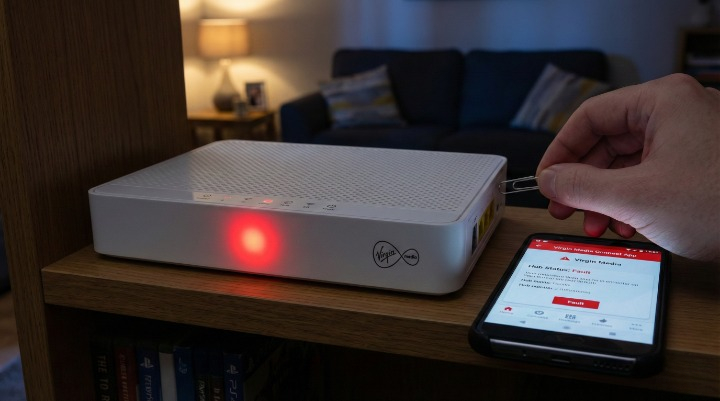
Step 3: The 60-Second Pinhole Reset
If the light stays red after cooling down, the firmware might be stuck in a “fault state.” A factory reset is the only way to clear this.
-
Locate the small “Reset” pinhole on the back of the Hub.
-
Use a paperclip or a SIM tool to press and hold the button inside.
-
Crucial: You must hold this for at least 60 seconds. You will see the lights flash and change colour.
-
Let go and wait 5 to 10 minutes for the Hub to re-establish a connection with the Virgin Media network.
Content Gap: The “LED Diode Failure” Explained
There is a specific issue widely discussed in Virgin Media community forums over the last year that many official guides ignore. Some Hub 3 units developed a hardware bug where the green and blue parts of the internal LED burn out.
Because the “White” light is actually a combination of red, green, and blue, the loss of the other colours leaves only the red light active. If your Hub is stone cold to the touch, has plenty of ventilation, and your internet is working perfectly despite the red light, you are likely witnessing a simple LED failure.
In this scenario, the Hub is safe to use, but you should still plan for a replacement as it indicates the hardware is reaching the end of its life cycle.
When to Request a Free Hub 4 or Hub 5 Upgrade
If you have performed a factory reset and the red light persists, the internal cooling fan or heat-sink has likely failed. Virgin Media considers a red light a hardware fault that warrants a replacement.
Do not pay for a new router. Under your Virgin Media contract, they are responsible for providing working hardware.
The 2026 Support Strategy:
Calling the 150 support line can often result in long wait times. Instead, use the following routes:
-
Text Support: Send a message to
0753 305 1809explaining that your Hub 3 has a solid red light and has failed the “cooling test.” -
Community Forums: Post in the “Broadband” section of the Virgin Media Community site. The forum team can often book an engineer visit without you needing to make a phone call.
-
Demand an Upgrade: In 2026, the Hub 3 is considered legacy hardware. Specifically ask the agent if you can be upgraded to a Hub 4 or Hub 5, which features much better thermal management and faster WiFi 6 speeds.
FAQs
Is a red light on a Virgin Hub 3 a fire hazard?
While rare, a solid red light indicates significant internal heat. If the unit is hot to the touch or emitting a smell, you should unplug it from the mains immediately and contact Virgin Media for an emergency replacement.
How long does a Virgin Media Hub 3 take to reboot?
A standard reboot takes about 2 to 5 minutes. However, after a factory reset, it can take up to 10 minutes to download the latest firmware from the network.
Why is my Virgin Media hub red but the internet is working?
This is usually caused by the Hub being in “Modem Mode” or the internal LED diodes failing. Check your settings at 192.168.0.1 to confirm.
Can I fix a flashing red light without calling Virgin Media?
A flashing red light usually means a cable issue. Ensure the white coaxial cable is screwed tightly into the back of the Hub and the wall socket. If the connection is tight and the light still flashes, there is likely an area outage.
What color should the Virgin Hub 3 light be?
In normal operation, the base light should be a continuous, dim white.
Does a factory reset delete my WiFi password?
Yes. A factory reset returns the Hub to its original settings. You will need to use the default SSID and password printed on the sticker under the base of the Hub.
Final Thoughts
A red light on your Virgin Media Hub 3 is a clear signal that your hardware needs attention. Whether it is a simple cooling issue or a total hardware failure, following the “Cool, Check, Reset” method is the fastest way to diagnose the problem.
If the red light refuses to go away, take it as an opportunity. The Hub 3 is an older model, and most UK customers are now eligible for a free upgrade to the much more reliable Hub 5.
Have you managed to clear your red light? Let us know in the comments below which step worked for you.
[Official Virgin Media Service Status Checker]
[Best Virgin Media Broadband deals for existing customers]
About the Author