Virgin Hub 3 Red Light Meaning: Overheating vs. Modem Mode False Alarms
Seeing a red light on your broadband router is a universal sign of a problem. For Virgin Media users, it usually triggers immediate panic about fire risks.
While a solid or flashing red light on the Hub 3 is the official warning for overheating, thousands of UK customers are actually experiencing a harmless hardware quirk. It involves Modem Mode.
We will show you exactly how to tell the difference between a dangerous overheating issue and a faded magenta LED. Plus, you will get the exact steps to reset your Hub 3 and get your WiFi back online safely.
A solid red light on a Virgin Media Hub 3 means the router is overheating and should be turned off immediately. However, if your router is in Modem Mode, a degraded magenta LED can falsely appear red. To test this, switch back to Router Mode to see if the light turns white.
Key Takeaways
- Solid red indicates overheating; flashing red indicates critical hardware failure.
- The Hub 3 must be stood upright for proper ventilation.
- In Modem Mode, the magenta light often fades to look red over time.
- Switching back to Router Mode requires the IP address 192.168.100.1.
- A 60-second pinhole reset is the ultimate hardware fallback.
- A persistent red light on a cool router requires an official replacement.
- Pro Tip: Never ignore a solid red light if your Hub is in standard Router Mode.
Quick Start: Is My Hub 3 Overheating?
Follow this quick diagnostic checklist to find out what your router is doing right now.
- Check current mode: Are you using a third-party router? If yes, the light is likely the Modem Mode magenta light. This can easily appear red.
- Touch test: Is the Hub physically hot to the touch? If yes, power it off immediately and check the ventilation.
- Mode toggle test: Switch back to Router Mode via software. Does the light turn white? If yes, there is no overheat issue. The LED has simply degraded.
- Reset test: Perform a 60-second hardware pinhole reset. Does the red light persist? If yes, contact Virgin Media for a replacement device.
The Virgin Hub 3 Red Light Meaning: Is It Actually Overheating?
Solid Red Light Diagnostics
The thermal sensor inside the device controls the base LED. A solid red LED on a Virgin Media Hub 3 is an official overheating warning indicator. Do not ignore it.
The official guidance is to turn the device off straight away. Ensure it is standing upright in a well-ventilated area out of direct sunlight. Then, reboot it.
As one forum expert puts it, “The red LED on a Hub 3 is the overheating warning. If this is faulty… the Hub needs replaced as it’s a risk” (Virgin Media Community Support, 2024).
Flashing Red Light: A Critical Warning
A flashing red light behaves differently. It points to a critical hardware or overheating fault. This generally requires a device replacement if standard reboots fail.
Pro Tip: Do not mistake a flashing red light for a standard firmware update. It always means hardware trouble.
For more details on device warnings, check the Virgin Media official help page on Hub lights.
The “Fake Red Light”: Magenta LED Degradation in Modem Mode
Many users place their Hub 3 in Modem Mode. This completely disables the built-in WiFi broadcasting to allow a third-party router to manage the network.
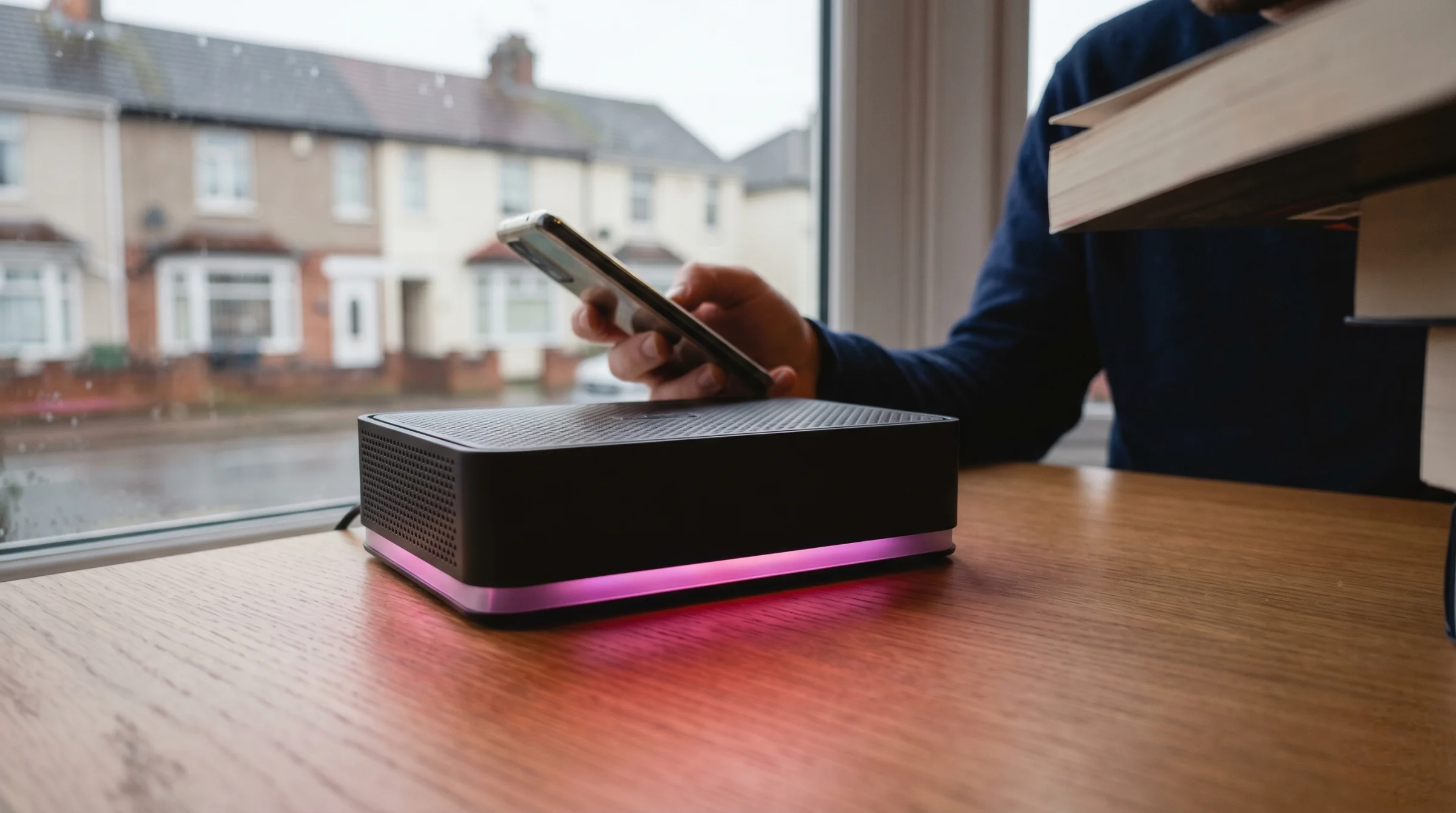
When working normally, a magenta light at the base indicates the device is successfully operating in Modem Mode. But there is a catch.
Due to the quality of the LEDs, users frequently confuse the magenta Modem Mode light with the red overheating warning light. The magenta colour physically fades over years of use. Eventually, it looks distinctly red.
Common Mistake: Panicking over a red light when you use a mesh network system. If you use your own router, that “red” light is almost certainly just a tired magenta LED.
Take this real example from the community forums. A user placed their Hub 3 in Modem Mode and noticed the base light looked red. An official forum expert clarified that older Hub 3 LEDs fade, making the magenta light appear red or yellowish over time (Virgin Media Community Support, 2024).
Consider a typical scenario. A UK user switches their Hub 3 to Modem Mode to use a third-party mesh system. The base light turns magenta, but due to LED age, it looks red. The user panics about overheating. They temporarily switch back to Router Mode. The light returns to a normal solid white. This confirms the hub is safe and it was merely an LED colour degradation issue.
How to Switch Back from Modem Mode to Router Mode
Sometimes you just need to get back to basics. If you suspect your red light is a false alarm, flip the router back to its default state. This takes two minutes. You can do this via software or a hard reset.
Method 1: The Software Fix (Using 192.168.100.1)
To switch back via software, you must log into the management interface. You need the specific IP address 192.168.100.1 for this.
Pro Tip: Always log into the admin panel via 192.168.100.1 when your Hub is in Modem Mode. The standard 192.168.0.1 IP simply will not load.
Follow these exact steps:
- Connect a computer or laptop directly to the Hub 3 using an Ethernet cable.
- Open a web browser and enter 192.168.100.1 into the address bar.
- Log in using the Hub’s admin password found on the bottom sticker.
- Navigate to the ‘Modem Mode’ settings menu on the left side.
- Select ‘Enable Router Mode’ and apply the changes.
- Wait for the Hub to reboot.
Once the Hub 3 successfully switches back to Router Mode, its management interface reverts. The default IP address becomes 192.168.0.1 again.
Method 2: The Hardware Fix (60-Second Reset)
What if the software panel refuses to load? Use the physical reset option.
Pro Tip: To force a Hub 3 back to Router Mode without using the software interface, hold the physical pinhole reset button for a full 60 seconds.
- Keep the router powered on.
- Insert a paperclip into the reset pinhole on the back.
- Press and hold firmly for exactly 60 seconds.
- Release and wait for the base light to turn solid white.
Quick Comparison: Hub 3 Light Status Guide
| Light Colour | Mode | Status | Required Action |
| Solid White | Router Mode | Normal operation | None. Hardware is safe. |
| Solid Red | Router Mode | Overheating warning | Power off. Check ventilation. |
| Flashing Red | Any Mode | Critical hardware fault | Reboot. Replace if persistent. |
| Magenta / Faded Red | Modem Mode | Normal operation | Switch to Router Mode to test. |
Summary Box: Quick Checks
- Safety First: Always check physical heat before assuming an LED error.
- Modem Mode Check: If using your own router, your “red” light is likely a faded magenta light.
- Reset Protocol: Use 192.168.100.1 or a 60-second hardware reset to escape Modem Mode. One user repeatedly failed to log in until an expert told them the IP address changes during this state (Virgin Media Community Support, 2024).
When to Request a Hub 3 Replacement
Sometimes hardware just fails. A persistent red light can be caused by a faulty LED rather than actual overheating. But it still requires technical attention.
If a hardware reboot or reset does not clear the red light, Virgin Media advises that the router should be replaced. It poses a potential safety risk.
Let’s look at a typical scenario. A user’s Hub 3 displays a solid red light in standard Router Mode. They power it off. They move it to a well-ventilated shelf and perform a 60-second pinhole reset. The red light persists even when the device is completely cold. A Virgin Media engineer replaces the device. They note that a failed internal temperature sensor requires an immediate swap.
“If the red LED persists after a pinhole reset, the Hub should be swapped out” (Virgin Media Community Support, 2025).
You can arrange an official replacement easily. Simply post on the Virgin Media Community Support forums and a moderator will book an engineer.
End Summary
A red light on a Virgin Hub 3 is designed to warn you of dangerous overheating. Yet, the poor longevity of the magenta Modem Mode LED causes thousands of false alarms. Test the device’s physical temperature. Perform a quick mode toggle. You can easily determine if your hardware is safe. If not, contact Virgin Media for a free replacement.
Next Steps:
- Feel the router for physical heat and move it to an upright, open position.
- Perform the 60-second pinhole reset if you cannot access the software dashboard.
- Book a replacement via the Virgin Media Community if the red light persists on a cold device.
FAQs
Is a Virgin Media Hub 3 solid red light dangerous?
Yes. In Router Mode, it is the official overheating warning. Turn the device off and let it cool down before checking for hardware faults.
What does a flashing red light mean on my Virgin router?
A flashing red light indicates a critical hardware or overheating fault. If a full reset does not fix it, the device usually needs replacing.
Why does my Hub 3 magenta light look red?
The LED degrades over years of use. It physically shifts from a bright magenta to a dull reddish colour, causing false overheating alarms.
How do I get my Virgin Hub 3 out of Modem Mode?
Log into the settings via 192.168.100.1 to toggle the mode, or hold the reset pinhole on the back for 60 seconds.
Why is 192.168.0.1 not working in Modem Mode?
When the Hub 3 enters Modem Mode, it changes its default management IP address to 192.168.100.1. The old address will not respond.
How long should I hold the pinhole reset on a Hub 3?
You must press and hold the button for at least 60 seconds while the router is powered on to force a factory reset.
Will Virgin Media replace an overheating Hub 3 for free?
Yes. If standard troubleshooting fails and the red light persists, Virgin Media replaces the hub for free as it is a safety risk.
Can I turn off the Hub 3 lights completely?
No. You cannot disable the base warning lights completely, as they serve as critical safety indicators.
About the Author